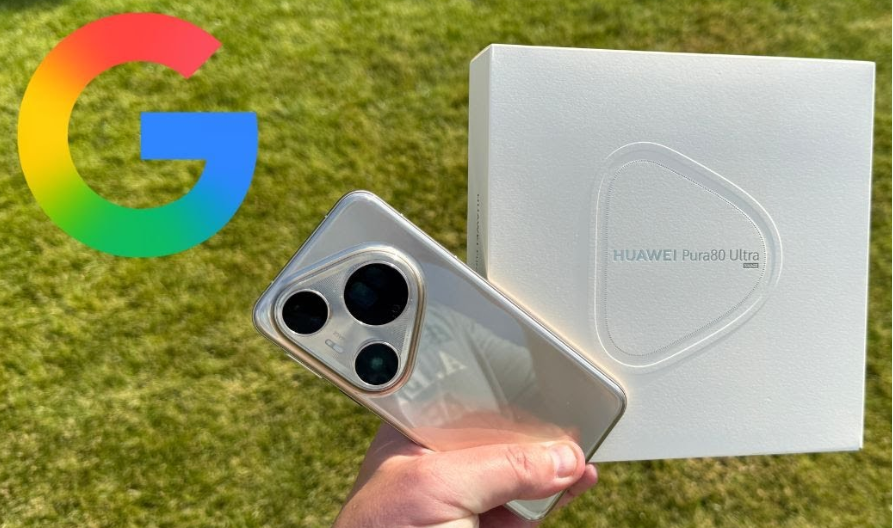
The Huawei Pura 80 is a powerful device built with impressive performance and camera upgrades, but like other recent Huawei models, it does not come with Google Mobile Services (GMS). For users who rely on Google Maps for navigation, this can seem like a challenge. Fortunately, there are several safe and effective methods to install and use Google Maps on the Pura 80. With the right steps, you can enjoy full navigation, real-time traffic updates, and accurate GPS performance. Here are five reliable methods to get Google Maps running smoothly on your device.
5 Ways to Install Google Maps on Huawei Pura 80
Below are the most effective methods to install google maps on huawei devices, each with a short guide to walk you through the process.
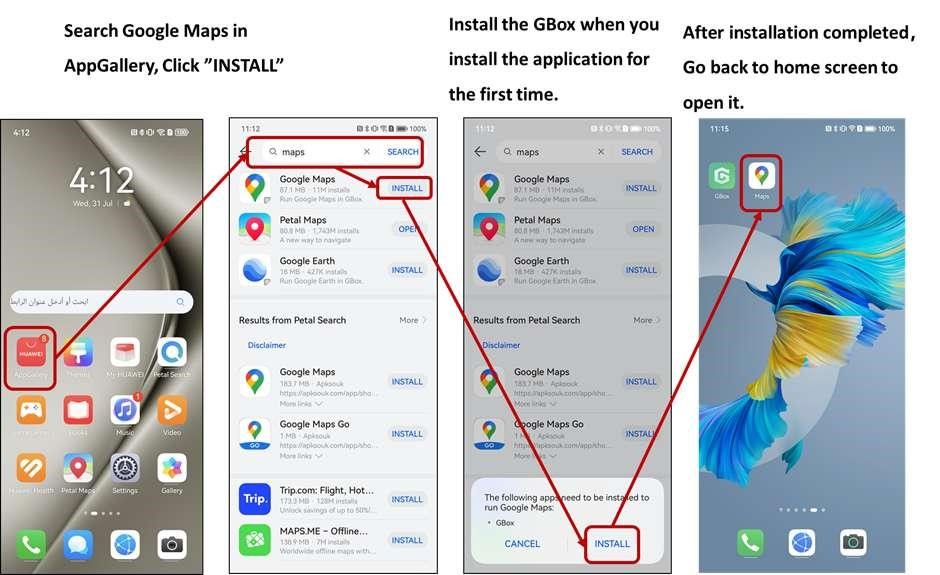
1. Install Google Maps from AppGallery Using MicroG (Recommended)
This method offers the smoothest, most stable Google Maps experience on the Pura 80.
Steps:
- Open HUAWEI AppGallery.
- Search for “Google Maps”.
- Tap Install.
- When the system prompts you to install MicroG, tap Install
- Wait for both apps to finish installing.
- Return to your home screen and open Google Maps.
- Sign in with your Google account if required.
This setup ensures Google Maps works with navigation, saved places, and real-time traffic.
2. Install Google Maps via Trusted APK Sources
If Google Maps isn’t available in the Huawei AppGallery for your region, downloading a verified APK works well.
Steps:
- Visit a trusted APK site (APKMirror, APKPure, Uptodown).
- Search for Google Maps APK.
- Download the latest ARM64 version.
- Go to Settings → Security → Install apps from external sources and enable your browser.
- Open the APK file and tap Install.
- Launch Google Maps from your home screen.
This method may require MicroG for login and syncing.
3. Use Petal Search to Locate Safe Google Maps Downloads
Petal Search helps users find reliable app sources.
Steps:
- Open Petal Search (install from AppGallery if needed).
- Type “Google Maps” in the search bar.
- Select a trusted download link suggested by Petal Search.
- Download and install the app following the on-screen prompts.
- Open the app and configure location permissions.
Petal Search can filter out unsafe sources, improving security.
4. Install Google Maps Using GBox (Older Device Compatibility)
GBox creates a secure virtual environment for apps that rely on Google frameworks.
Steps:
- Open AppGallery.
- Search for Google Maps.
- Tap Install.
- The device will prompt you to install GBox—tap Allow.
- After installation, Google Maps will run inside GBox.
- Open Google Maps and sign in.
This method offers high compatibility but may consume slightly more resources.
5. Use Google Maps Through the Browser (No Installation Needed)
If you prefer not to install anything, the browser version still offers reliable navigation.
Steps:
- Open Huawei Browser, Firefox, or Opera.
- Visit google.com.
- Sign in to your Google account for access to saved places.
- Allow browser location permissions.
- Use navigation features directly online.
This option is very convenient for light users or quick searches abroad.
Conclusion
Despite the absence of Google Play Services, Huawei Pura 80 users have multiple safe and effective ways to enjoy Google Maps. Whether you choose the Huawei AppGallery with MicroG, trusted APK files, Petal Search, GBox, or the browser version, each method offers reliable access to maps, routes, and navigation tools. By following the step-by-step instructions for each option, you can set up Google Maps with confidence and enjoy a smooth navigation experience wherever you go.

 By
By